
Envelope properties
Create or edit an Envelope.
Overview
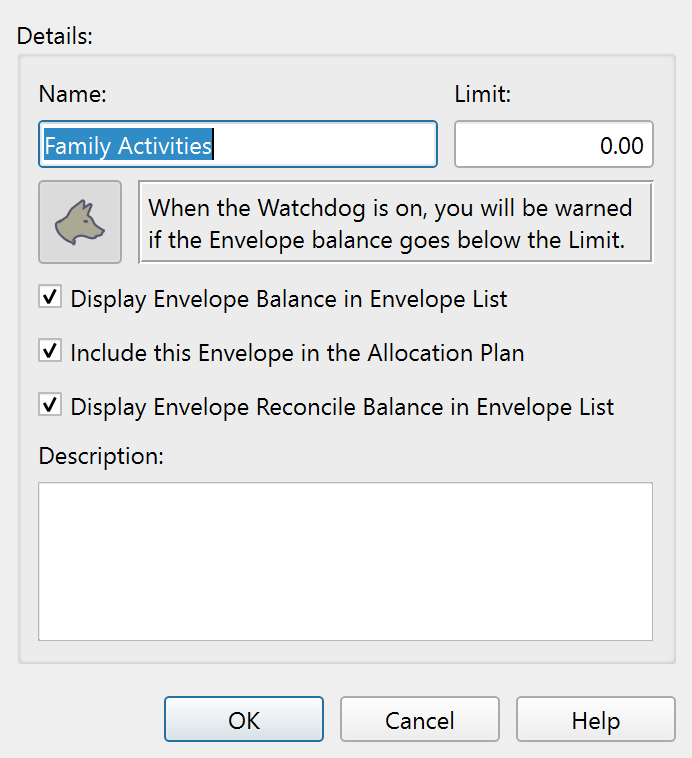
The Envelope properties dialog creates a new Envelope or edits an existing one. Open it by right-clicking an Envelope in the Envelope list and selecting Edit properties, or by using the add button to create a new Envelope.
Fields
The dialog contains these controls:
| Field | Description |
|---|---|
| Name | The display name of the Envelope. Must be unique and non-blank. |
| Limit | The Watchdog threshold amount. When the Envelope balance drops below this value, an alert is triggered. This field is only editable when the Watchdog is turned on. |
| Watchdog toggle | A button that enables or disables the Watchdog for this Envelope. When turned off, the limit field displays "Watchdog off" and is disabled. When turned on, the previous limit value is restored. |
| Display Envelope balance in Envelope list | Controls whether the balance column in the Envelope list shows a value for this Envelope. |
| Include this Envelope in the Allocation Plan | Marks the Envelope for inclusion in the Allocation Plan. |
| Display Envelope cleared balance in Envelope list | Controls whether the cleared balance column in the Envelope list shows a value for this Envelope. |
| Description | An optional free-text description of the Envelope's purpose. |
Watchdog behavior
The Watchdog is a spending alert system. When enabled, Principal Plan monitors the Envelope's balance and shows a Watchdog alert whenever a Transaction causes the balance to drop below the limit.
- Turning the Watchdog on restores the limit field to its previous value, enables editing, and right-aligns the amount.
- Turning the Watchdog off saves the current limit value internally, displays "Watchdog off" in the field, disables editing, and centers the text.
An inline description below the toggle explains: "When the Watchdog is on, you will be warned if the Envelope balance goes below the limit."
Allowed Envelope values
Envelope names must be filled in and unique. If the name is blank, or if another Envelope already uses the same name, Principal Plan shows a warning and asks you to enter a different name.
The limit and description fields do not have additional restrictions.
Buttons
| Button | Description |
|---|---|
| OK | Saves the changes and closes the dialog. |
| Cancel | Discards changes and closes the dialog. |
| Help | Opens this help topic. |
Note: The entire help system is available as a single Markdown file suitable for teaching your favorite AI agent to be your personal Principal Plan expert. Download