
Main window
Overview of the Principal Plan main window.
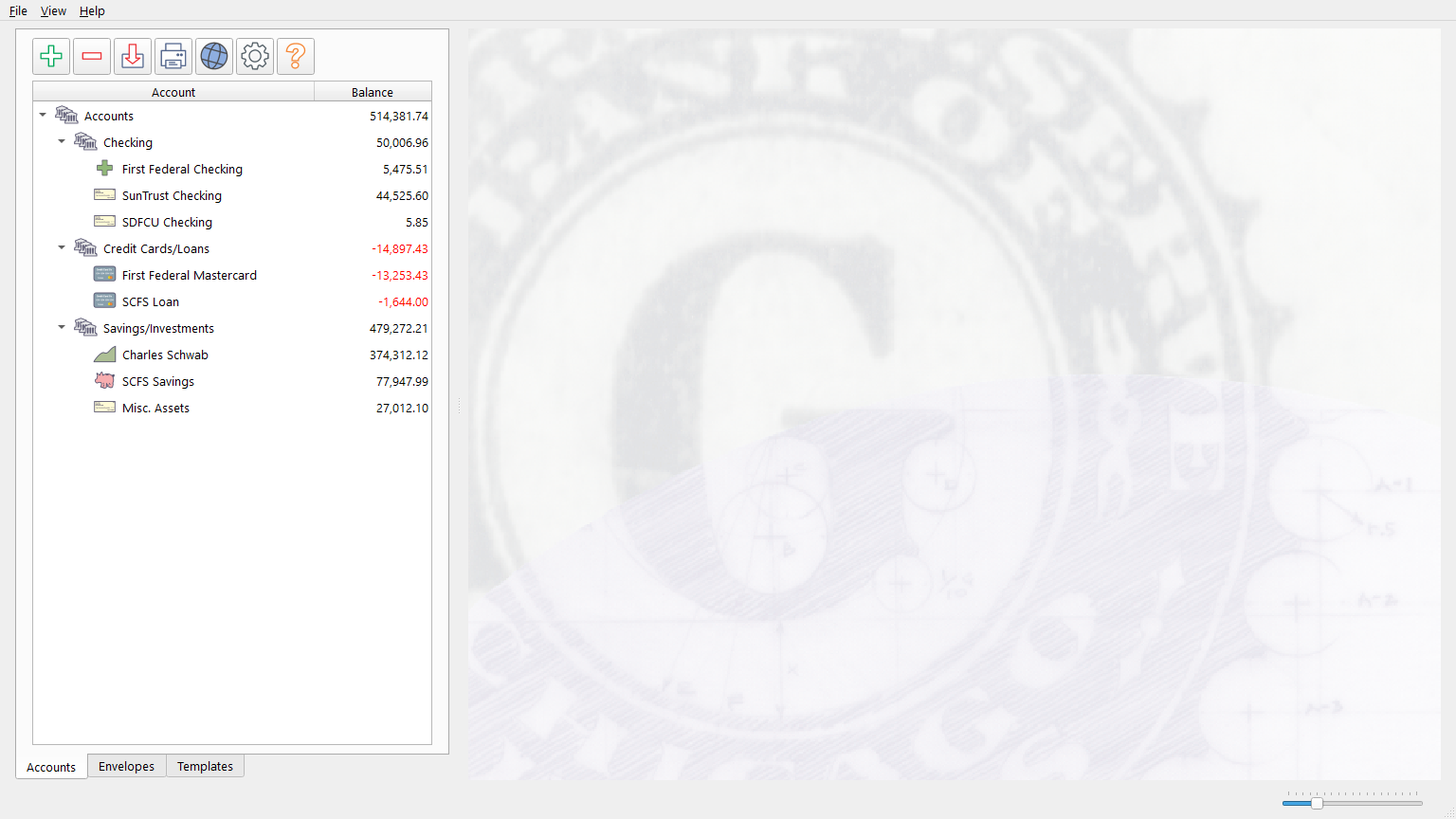
Overview
The main window is divided into two areas separated by a draggable splitter: a left panel containing the Accounts, Envelopes, and Templates lists, and a central content area that displays Ledger tabs.
Left panel
The left panel can operate in two modes, selectable in Settings:
- Tab mode – The three lists appear as tabs. Click the Accounts, Envelopes, or Templates tab along the bottom to switch between them.
- Splitter mode – All three lists are stacked vertically. Drag the dividers between them to adjust how much space each list receives.
Each list has its own toolbar with buttons for adding, deleting, and managing items. See the individual help topics for details:
- Account list – Managing your Accounts.
- Envelope list – Managing your Envelopes.
- Templates – Managing Transaction Templates.
Central content area
The central area uses a tabbed interface for viewing Account and Envelope Ledgers. Tabs can be opened in several ways:
- Double-click an Account or Envelope in the left panel.
- Select View > Account Ledger or View > Envelope Ledger from the menu bar.
- Use the keyboard shortcuts Ctrl+A (Account Ledger) or Ctrl+E (Envelope Ledger).
Multiple tabs can be open at the same time. Tabs can be reordered by dragging and closed with the X button on each tab or by pressing Ctrl+W.
Menu bar
The menu bar contains three menus:
- File – Create, open, save, import, and configure.
- View – Open Ledger views and the Allocation Plan.
- Help – Access help, registration, licensing, and version information.
See Introduction for a full listing of menu items.
Window title
The window title shows the name of the currently open file followed by "Principal Plan" and the version number.
Splitter
The divider between the left panel and the central content area can be dragged to resize either side. The splitter position is saved and restored between sessions.
Note: The entire help system is available as a single Markdown file suitable for teaching your favorite AI agent to be your personal Principal Plan expert. Download