
Account List
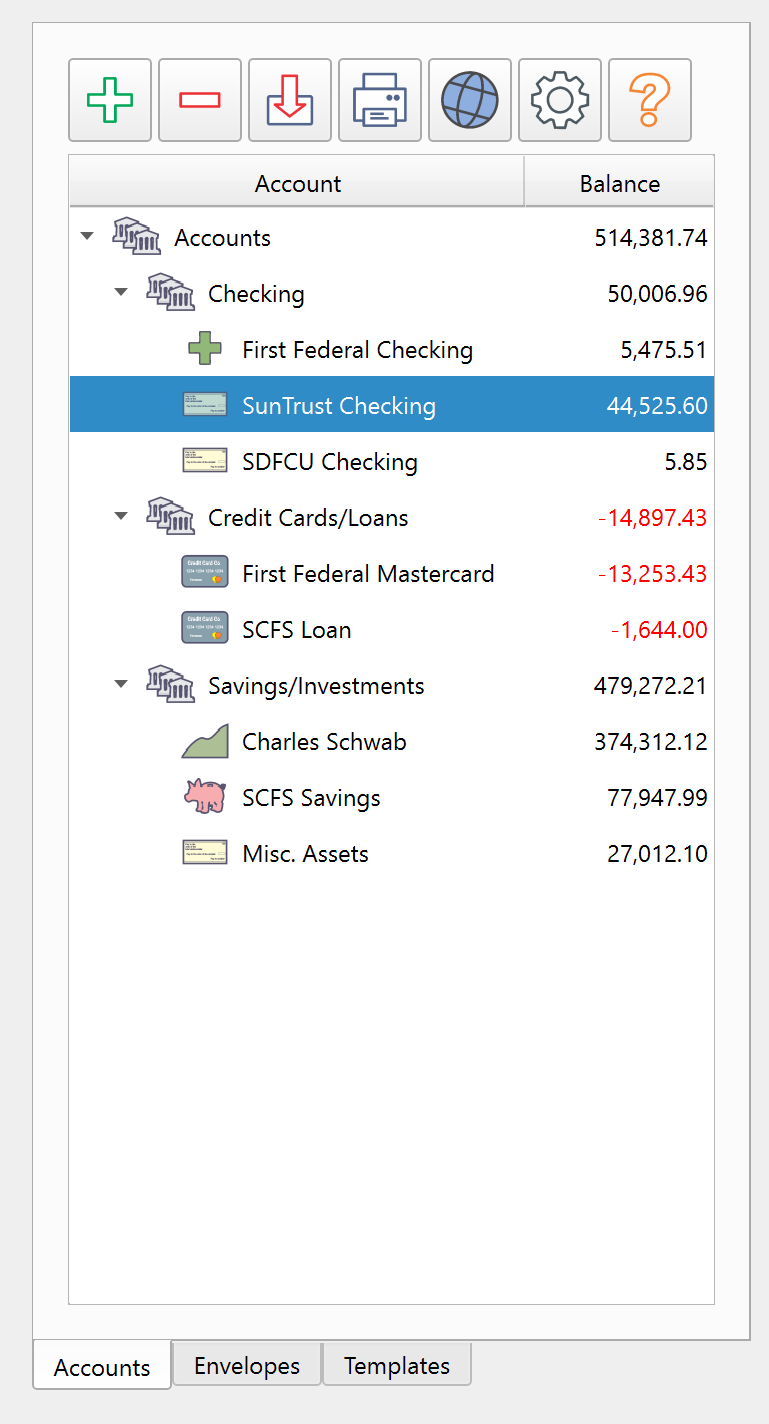
The Accounts tab in the main window.
Overview
The Account List is the first section of the left panel. It shows your financial accounts in a tree view, with groups acting as folders for other accounts. The list can show each account's current balance and cleared balance, depending on the configured columns.
Double-click an account to open its ledger in a new tab.
Columns
The account list displays three columns:
| Column | Description |
|---|---|
| Account | The account name and type icon. Group accounts display a folder icon. |
| Balance | The current balance of the account, including all transactions. |
| Cleared | The balance considering only cleared transactions. This matches what your bank reports. |
Column widths can be adjusted by dragging the dividers in the header row.
Toolbar
The toolbar along the top of the account list provides quick access to common actions:
| Button | Tooltip | Description |
|---|---|---|
| Add | Add New Account | Adds a new account or account group. Clicking the button shows a menu with Insert Account and Insert Account Group options. |
| Delete | Delete Selected Account | Deletes the selected account. A confirmation dialog appears first. |
| Import | Import Transactions | Opens the import dialog to bring in transactions from a CSV, OFX/QFX, or QIF file. |
| Print Account List | Prints the account list. | |
| Website | Open Website for Selected Account | Opens the web address associated with the selected account in your default browser. The web address is set in Account Properties. |
| Settings | Account List Settings | Opens a settings dialog for the account list display options. |
| Help | Account List Help | Opens this help topic. |
Right-Click Menu
Right-clicking in the account list opens a context menu with the following actions:
- Insert Account -- Creates a new account under the selected group.
- Insert Account Group -- Creates a new account group under the selected group.
- Delete -- Deletes the selected account or accounts.
- Sort Ascending / Descending -- Shown only when you right-click an account group. Sorts the accounts within that group by the column you right-clicked, ascending or descending.
- Open Website -- Opens the web address for the selected account.
- Edit Properties -- Opens the Account Properties dialog for the selected account.
Organizing Accounts
Accounts can be organized into groups. A group is a special account type that acts as a folder and does not have its own transactions. To create one, use the add button and select Insert Account Group.
Drag accounts and groups to reorder them. You can drag an account into a group to nest it, or drag it out to move it to a different level.
Selection
The account list supports extended selection. Click to select a single account, hold Ctrl and click to add accounts to the selection, or hold Shift and click to select a range. The delete and properties actions work on the current selection.
Editing Account Names
Account names can be edited directly in the list by slowly double-clicking (click once to select, then click again on the name). Press Enter to confirm the new name or Escape to cancel.
Deleting Accounts
When deleting an account, a confirmation dialog warns that envelope balances associated with the account will be affected and spending history may be lost. The dialog suggests creating an account group for old, unused accounts rather than deleting them.
You cannot delete the last account. At least one account must exist at all times. You also cannot delete an account group that still contains other items -- move or delete the contained items first.
Note: The entire help system is available as a single Markdown file suitable for teaching your favorite AI agent to be your personal Principal Plan expert. Download