
Import Transactions — Basic
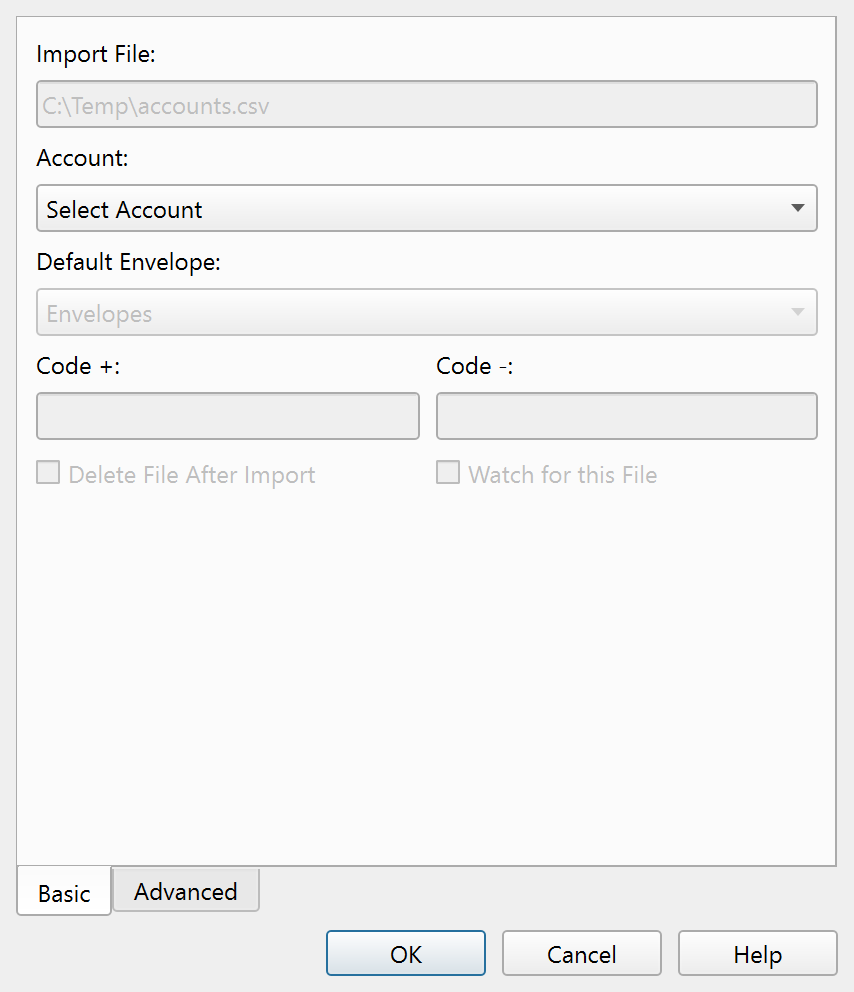
The Basic tab of the import dialog.
Overview
The Basic tab of the Import Transactions dialog contains the essential settings for every import: which Account to target, which Envelope to assign by default, and how to handle the source file after import.
Fields
| Field | Description |
|---|---|
| Import file | A read-only field showing the full path of the file being imported. |
| Account | A drop-down listing all Accounts. You must select an Account before the import can proceed. The remaining controls on this tab are disabled until an Account is chosen. |
| Default Envelope: | The Envelope assigned to imported Transactions that are not matched by AI Envelope matching or by an existing Transaction. |
| Code +: | The transaction type code that identifies deposits in the import file (default: "credit"). Used when the file has a single amount column with a type indicator rather than separate payment and deposit columns. |
| Code -: | The transaction type code that identifies payments in the import file (default: "debit"). |
| Delete file after import | When checked, the source file is removed from disk after a successful import. Enabling this option makes Watch for this file available. |
| Watch for this file | When checked, Principal Plan monitors the file path and automatically reopens the import dialog if the file reappears. Only available when Delete file after import is also checked. This supports recurring automated bank downloads. |
Per-Account settings
All Basic tab settings are saved on the selected Account. The next time you import into the same Account, the dialog restores your previous choices. Selecting a different Account in the drop-down loads that Account's saved settings.
Note: The entire help system is available as a single Markdown file suitable for teaching your favorite AI agent to be your personal Principal Plan expert. Download