
Envelope activity report
Detailed activity breakdown across Envelopes over a date range.
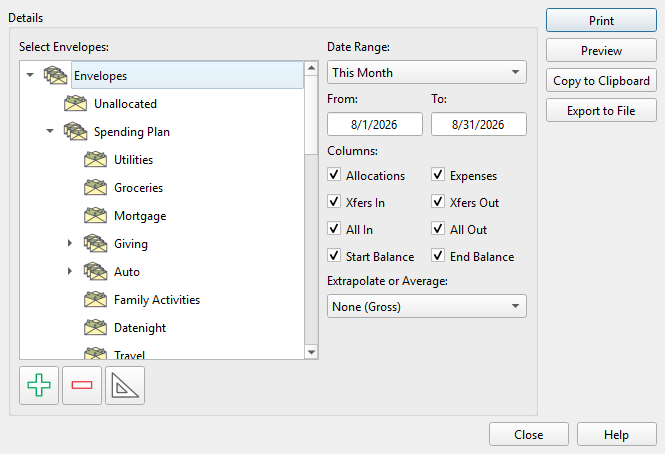
Overview
The Envelope activity report shows a breakdown of allocations, expenses, and Transfers for selected Envelopes over a date range. Open it by clicking the print button in the Envelope list toolbar and selecting Envelope activity.
Envelope selection
The left side of the dialog shows a tree view of all your Envelopes. Select the Envelopes you want to include in the report. Three toolbar buttons control selection:
- Select all Envelopes – Selects every Envelope.
- Clear selection – Selects nothing.
- Select Allocation Plan – Selects only Envelopes that are included in the Allocation Plan.
Your selections are remembered between sessions.
Date range
A drop-down offers preset date ranges:
- Custom – Enables editable From and To date fields.
- This week / This week to date / Last week
- This month / This month to date / Last month
- This quarter / This quarter to date / Last quarter
- This year / This year to date / Last year
Selecting a preset fills in the From and To dates automatically. Editing the dates directly switches the drop-down to Custom.
Columns
Eight checkboxes control which data columns appear in the report:
| Column | Description |
|---|---|
| Allocations | Positive non-Transfer Transactions (income allocated to the Envelope). |
| Expenses | Negative non-Transfer Transactions (spending from the Envelope). |
| Transfers in | Transfer money moved into the Envelope. |
| Transfers out | Transfer money moved out of the Envelope. |
| All in | Combined total of allocations and Transfers in. |
| All out | Combined total of expenses and Transfers out. |
| Start balance | The Envelope balance at the start of the date range. |
| End balance | The Envelope balance at the end of the date range, computed as Start balance + All in - All out. |
Extrapolate or average
A drop-down scales the reported values to a normalized rate:
- None (gross) – Shows raw totals for the selected period.
- Per day, per week, per month, per quarter, or per year.
Start and end balances are not affected by scaling.
Output options
| Button | Description |
|---|---|
| Sends the report to your printer. | |
| Preview | Opens a print preview window. |
| Copy to clipboard | Copies the report as tab-delimited text. |
| Export to file | Saves the report as a CSV file. |
All settings are remembered between sessions.
Note: The entire help system is available as a single Markdown file suitable for teaching your favorite AI agent to be your personal Principal Plan expert. Download