Mobile pairing
Pair a mobile device with the open file and choose what it sees.
Overview
The Mobile pairing dialog links the Principal Plan mobile app to a data file, so the app can display that file's Envelope balances. Open it from File > Mobile pairing.
One file is paired at a time, and syncing runs only while that file is open. Opening a different file leaves the mobile app showing the data it last received. To sync a different file, generate a new code and pair again.
The dialog has two tabs. Envelopes chooses what the mobile app sees. Pair device creates and revokes the pairing.
Pairing a device
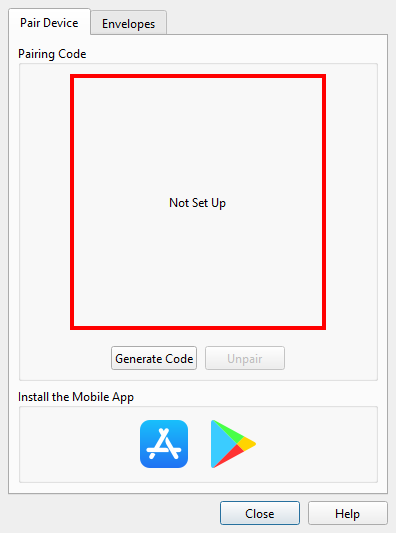
On the Pair device tab, press Generate code and enter a passphrase of at least 8 characters. The desktop displays a QR code. In the mobile app, open the menu with the three-bar button at the top left, choose Pair, scan the code, and type the same passphrase. The passphrase is never shown beside the QR code and never travels over the network, so a photograph of the screen is not enough to read your data.
The passphrase cannot be recovered. If it is forgotten, unpair and generate a new code.
The file must be saved before it can be paired, and it must have no unsaved changes. Generate code stays disabled until both are true.
Generating a code while a pairing already exists asks for confirmation first. Confirming unpairs every device paired to the earlier file and erases that file's synced data from the server.
The frame around the code box reports the state of the pairing. Green means syncing is active for the open file. Red means nothing is paired, or the pairing belongs to a file that is not open, or to a file that can no longer be found. While nothing is paired the box reads Not set up.
Opening the dialog on anything other than an active pairing brings up a message naming the next step: save the file before pairing it, or, when the pairing belongs to another file, that generating a new code pairs this file and deletes the old pairing.
The App Store and Google Play badges at the bottom of the tab open the mobile app's store listing in your browser, so the app can be installed on the phone before pairing.
Choosing Envelopes
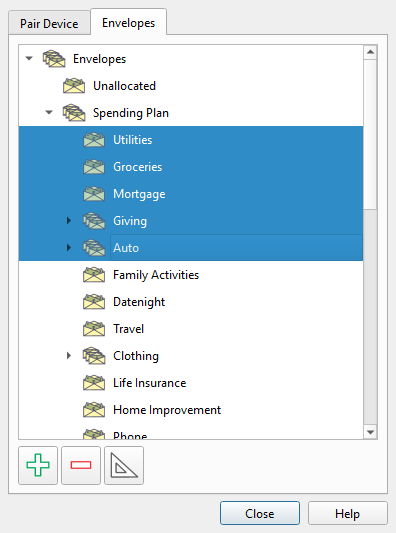
The Envelopes tab decides which Envelopes reach the mobile app. The choice can be made while nothing is paired, or while the pairing belongs to the open file. When the pairing belongs to another file, the tab's controls stay disabled.
Pick Envelopes in the list with the mouse — hold Ctrl to add to the selection, or Shift to take a range. Three buttons beneath the list fill the selection for you:
| Button | Description |
|---|---|
| Select all Envelopes | Selects every Envelope in the file. |
| Clear selection | Selects nothing. |
| Select Allocation Plan | Selects the Envelopes included in the Allocation Plan. |
Child Envelopes are not implied by their parent — select each Envelope you want published.
While pairing is active for the open file, at least one Envelope must be selected before the dialog will close. Envelopes always reach the mobile app in the order they appear in the Envelope list, whatever order they were selected in.
Dialog controls
| Control | Description |
|---|---|
| Generate code | Creates a new pairing for the open file. Any existing pairing is revoked first, after a confirmation, and devices paired to it stop receiving data. Disabled until the file has been saved with no unsaved changes. |
| Unpair | Revokes every paired device and erases the synced data from the server. This cannot be undone. |
| Close | Closes the dialog. Every change takes effect immediately, so there is nothing to confirm. |
On the mobile device
The three-bar button at the top left of the mobile app opens its menu.
| Command | Description |
|---|---|
| Pair | Checks camera access, then opens the scanner so the device can read a code from the desktop. Shows a Camera message instead when the camera cannot be used; see Mobile app. Available only while the device is not paired. |
| Unpair | Forgets the pairing on the device and clears the balances it is showing. The desktop keeps its own pairing, so the device can pair again with a new code. Available only while the device is paired. |
| Refresh | Reads the published data at once instead of waiting for the next check. Available only while the device is paired. |
| Language | Opens the language list. The app starts in English, changes language as soon as one is picked, and remembers the choice. |
Pair, Unpair and Refresh are also disabled while the app is talking to the server.
The app checks for new data every five minutes while it is on screen, and stops checking while it is in the background. The bar at the bottom of the screen reads Not paired until a code is scanned, then shows when the data on display was published.
What the mobile app receives
The desktop publishes only data that is in the file. Unsaved edits are never sent, so the balances on the phone always match the last save. Publishing happens when the file is opened or saved, when the Envelopes choice is changed, and again every five minutes while the desktop is running, which is what keeps the date shown on the phone current.
Note: The entire help system is available as a single Markdown file suitable for teaching your favorite AI agent to be your personal Principal Plan expert. Download