
Create income Template
Create a new income Template for the Allocation Plan.
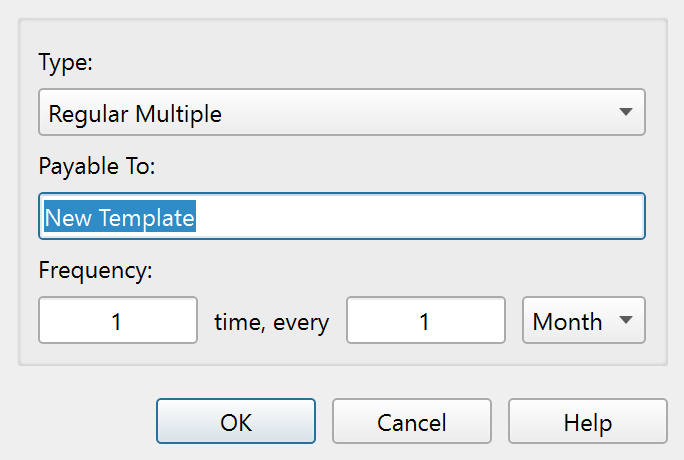
Overview
The Create income Template dialog creates a new Transaction Template and adds it directly to the Allocation Plan as a new column. It opens when you click Add new Template from the add button menu in the Allocation Plan dialog.
Fields
| Field | Description |
|---|---|
| Payable to: | The name of the Template. Pre-filled as "New Template". This name also becomes the Template's payee field and appears as the column header in the Allocation Plan. |
| Type | The Template type. Two options are available: Regular multiple (a deposit or payment split across Envelope allocations, with optional Account Transfer rows when enabled) and Multiple Envelope Transfer (an Envelope-based Transfer). |
| Frequency: | How often the income recurs, expressed as a count, period, and span. For example, "1 time, every 1 Month" describes a monthly Template. The span label switches between singular and plural automatically. |
Allowed Template names
The Payable to: field is the Template name. It must be filled in and unique across all existing Templates, including Templates that are not currently in the Allocation Plan. If it is blank, or if another Template already uses the same name, Principal Plan shows a warning and asks you to enter a different name.
Buttons
| Button | Description |
|---|---|
| OK | Creates the Template and adds it to the Allocation Plan. |
| Cancel | Cancels Template creation. |
| Help | Opens this help topic. |
Note: The entire help system is available as a single Markdown file suitable for teaching your favorite AI agent to be your personal Principal Plan expert. Download