
Search and replace
Find and replace text across Transactions.
Overview
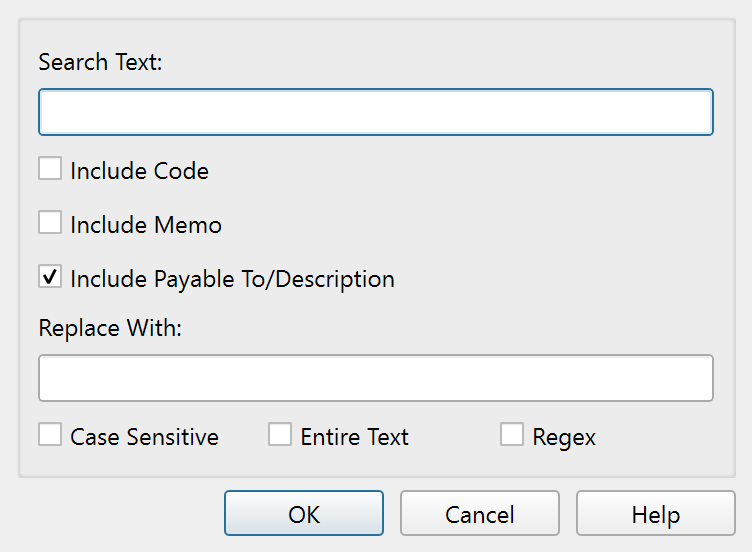
The Search and replace dialog finds and replaces text across all visible Transactions in the current Ledger. Open it from the Ledger toolbar button or by pressing Ctrl+H.
Fields
| Field | Description |
|---|---|
| Search text | The text to find. |
| Replace with | The replacement text. Leave empty to delete matched text. |
Search scope
Three checkboxes control which Transaction fields are searched:
| Checkbox | Description |
|---|---|
| Include code | Searches in the code field. Off by default. |
| Include memo | Searches in the memo field. Off by default. |
| Include payable to/description | Searches in the payee field. On by default. |
You can enable any combination of these to search across multiple fields at once.
Match options
Three checkboxes refine how the search text is matched:
| Option | Description |
|---|---|
| Case sensitive | Distinguishes between uppercase and lowercase letters. Off by default. |
| Entire text | Requires the entire field to match the search text, not just a substring. Off by default. |
| Regex | Treats the search text as a regular expression with capture group support. Off by default. |
How it works
When you click OK, the operation runs immediately on all Transactions currently visible in the Ledger. Each selected field in each Transaction is checked against the search text, and matching text is replaced.
There is no preview or per-Transaction confirmation step. The replacement happens in one pass across all visible Transactions.
After completion, a message reports how many Transactions were modified (for example, "3 Transactions modified."). The Ledger updates in place to reflect the changes.
Tips
- Filter first. Use the Ledger filter to narrow the visible Transactions before running a search and replace. The operation only affects Transactions that are currently displayed.
- Use regex for complex patterns. With the Regex option enabled, you can use regular expression syntax for advanced matching, including capture groups in the replacement text.
- Combine with Entire text. Enable both Regex and Entire text to anchor the pattern to the full field value.
Buttons
| Button | Description |
|---|---|
| OK | Runs the search and replace operation. |
| Cancel | Closes the dialog without making changes. |
| Help | Opens this help topic. |
Note: The entire help system is available as a single Markdown file suitable for teaching your favorite AI agent to be your personal Principal Plan expert. Download