Account Ledger
The transaction register for a single account.
Overview
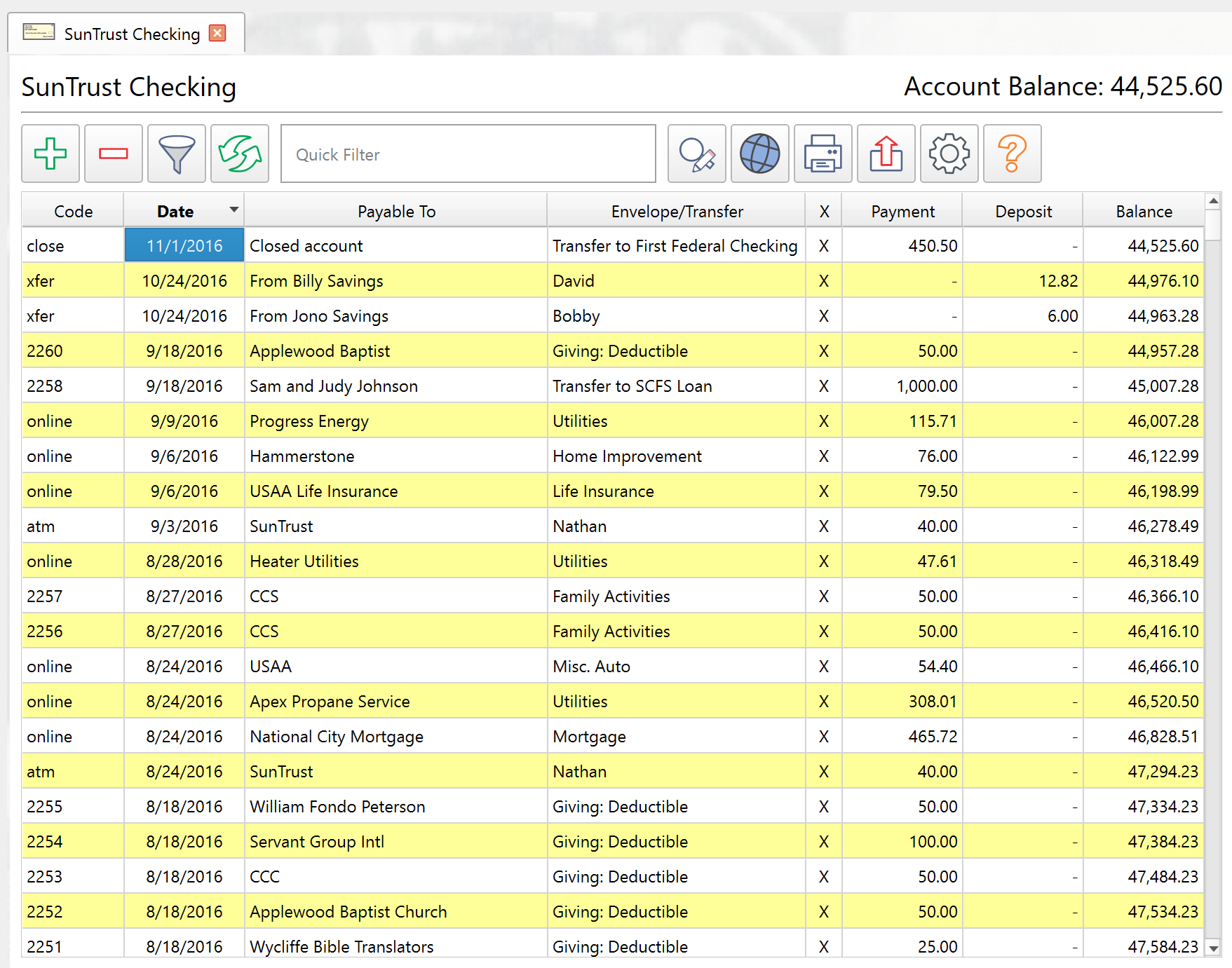
The account ledger is the workspace for viewing and managing transactions in a single account. It opens as a tab when you double-click an account in the Account List or choose View > Account Ledger from the menu bar.
The ledger header shows the account name and the current balance (or cleared balance in reconcile mode). Negative balances appear in red.
Columns
The ledger displays the columns listed below. Column visibility and width are configurable through the settings button.
| Column | Description |
|---|---|
| Code | The check number or reference code. |
| Date | The transaction date. Hovering shows the long date format as a tooltip. |
| Payable To | The payee or description. |
| Memo | An optional note. |
| X (Account) | The account clearing state: blank = not cleared, * = pending, X = cleared. |
| Account | The account name. |
| Envelope/Transfer | Shows the linked envelope name for simple transactions or the transfer target for transfers. |
| Payment | The payment amount. A dash indicates zero. |
| Deposit | The deposit amount. A dash indicates zero. |
| Balance | The running account balance. Negative values appear in red. Future-dated transactions appear in a distinct color. |
Most columns can be sorted by clicking the header. The Balance column cannot be sorted.
Toolbar
The toolbar across the top of the ledger provides these actions:
| Button | Description |
|---|---|
| Add New Transaction | Opens the transaction editor to create a new transaction. |
| Delete Selected Transaction | Deletes the selected transaction after confirmation. |
| Filter View | Opens a drop-down with quick filter presets and an Advanced option for the full filter dialog. |
| Refresh View (F5) | Refreshes the ledger display. |
| Quick Filter | A text box for live filtering as you type (Ctrl+Q to focus). |
| Search and Replace Values | Opens the search and replace dialog. |
| Web Lookup | Searches the web for the selected transaction's payee. |
| Print Ledger | A drop-down with Print and Preview options. |
| Export | A drop-down with Export Ledger and Copy Ledger to Clipboard options. |
| Settings | Opens the ledger column and display settings. |
| Help | Opens this help topic. |
Right-Click Menu
Right-clicking a transaction shows a context menu with these actions:
- Delete -- Deletes the selected transaction.
- Toggle Cleared -- Cycles the account clearing state between not cleared and pending.
- Search Web -- Searches the web for the transaction's payee.
- Insert New Simple -- Creates a new simple transaction.
- Insert New Transfer -- Creates a new transfer transaction.
- Insert New Multiple -- Creates a new multi-split transaction.
Keyboard Shortcuts
| Shortcut | Action |
|---|---|
| F5 | Refresh the ledger view. |
| Ctrl+Enter | Open the transaction editor for the selected transaction. |
| Ctrl+Insert | Create a new transaction. |
| Ctrl+Delete | Delete the selected transaction. |
| Ctrl+X | Toggle the cleared state of the selected transaction. |
| Ctrl+H | Open the search and replace dialog. |
| Ctrl+Home | Jump to the first transaction. |
| Ctrl+End | Jump to the last transaction. |
| Ctrl+Q | Focus the quick filter text box. |
Filtering
The Filter View button provides quick filter presets:
- View All -- Shows all transactions.
- View Pending -- Shows only uncleared transactions.
- View Pending Deposits -- Shows uncleared deposits.
- View Pending Checks -- Shows uncleared transactions with check codes.
- View Pending Non-Checks -- Shows uncleared non-check transactions.
The Advanced option opens the full Transaction View Filter and Settings dialog with eight filter categories:
- Filter by Date -- Any, specific date, or date range.
- Filter by Code -- Any, checks only, non-numbers, or text search.
- Filter by Payable To -- Any or text search.
- Filter by Other Criteria -- Transaction type, specific envelope, or include descendants.
- Filter by Amount -- Any, payments, deposits, specific amount, or range.
- Filter by Cleared State -- Any, cleared, not cleared, or not cleared and pending.
- Filter by Memo -- Any or text search.
- Filter by Import/Synchronization -- Any, freshly imported, or not freshly imported.
Text search filters support case-sensitive matching, exact matching, and regular expressions.
Creating and Editing Transactions
Double-click a transaction to open the transaction editor. Use the toolbar button or Ctrl+Insert to create a new transaction. The editor supports all four transaction types: Simple, Transfer, Regular Multiple, and Multiple Envelope Transfer.
The Payable To field offers auto-complete from your transaction history. Selecting a match can fill other fields from the most recent matching transaction.
See the Edit Transaction topic for full details on the transaction editor.
Printing and Exporting
The print button offers two options:
- Print Ledger -- Sends the ledger to your printer in portrait layout.
- Preview Ledger -- Opens a print preview window.
The export button offers two options:
- Export Ledger -- Saves the visible transactions as a CSV file.
- Copy Ledger to Clipboard -- Copies the visible transactions as tab-delimited text for pasting into a spreadsheet.
Both export options respect column visibility settings and offer an option to combine the payment and deposit columns into a single amount column.
Note: The entire help system is available as a single Markdown file suitable for teaching your favorite AI agent to be your personal Principal Plan expert. Download