
Envelope list
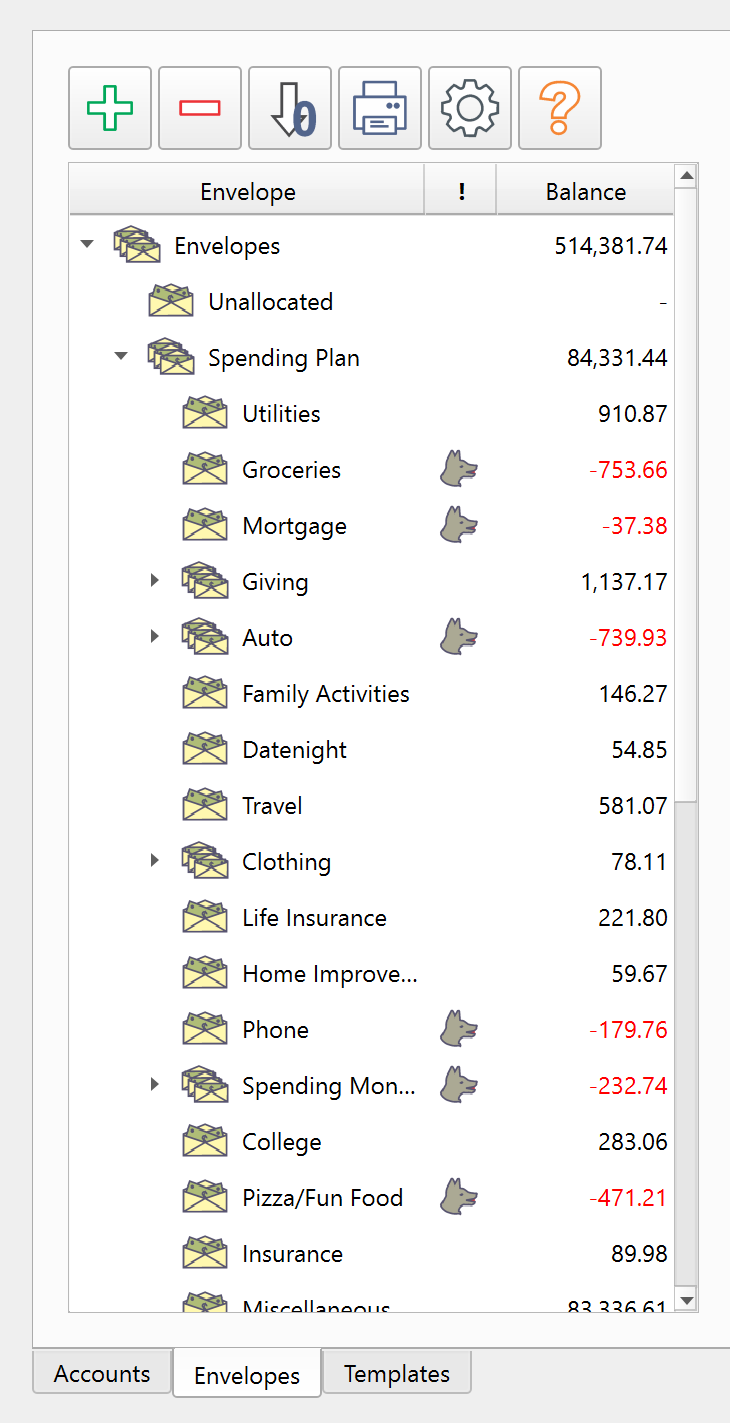
The Envelopes tab in the main window.
Overview
The Envelope list is the second section of the left panel. It shows your spending categories as a tree of Envelopes. Each Envelope is a virtual container for part of your funds, supporting the envelope budgeting model where every dollar has a purpose before it is spent.
Envelopes can be nested inside other Envelopes for hierarchical organization. For example, a "Housing" Envelope might contain child Envelopes for "Rent," "Utilities," and "Insurance."
Double-click an Envelope to open its Ledger in a new tab.
Columns
The Envelope list can display four columns:
| Column | Description |
|---|---|
| Envelope | The Envelope name. Nested Envelopes are indented under their parent. Always shown. |
| ! | The Watchdog indicator. Displays an alert icon when the Envelope balance has fallen below its Watchdog limit. Optional – shown when Display Watchdogs is on in Settings — Envelopes. |
| Balance | The current balance of the Envelope, including all Transactions. Optional – shown when Display balance is on in Settings — Envelopes; each Envelope can also hide its own value in Envelope properties. |
| Cleared | The cleared balance of the Envelope – the total of its Transactions marked as cleared. Optional – shown when Display cleared balance is on in Settings — Envelopes; each Envelope can also hide its own value in Envelope properties. |
Column widths can be adjusted by dragging the dividers in the header row.
Toolbar
The toolbar along the top of the Envelope list provides quick access to common actions:
| Button | Tooltip | Description |
|---|---|---|
| Add | Add new Envelope | Creates a new Envelope under the currently selected Envelope. |
| Delete | Delete selected Envelope | Deletes the selected Envelope. A confirmation dialog appears first. |
| Zero out | Zero out | Transfers the remaining balance of the selected Envelope to another Envelope, bringing it to zero. |
| Print Envelope reports | Opens a drop-down menu with two report options: Envelope activity and Envelope summary. | |
| Settings | Envelope list settings | Opens a settings dialog for the Envelope list display options. |
| Help | Envelope list help | Opens this help topic. |
Right-click menu
Right-clicking in the Envelope list opens a context menu with the following actions:
- Insert Envelope – Creates a new Envelope under the selected Envelope.
- Delete Envelope – Deletes the selected Envelope.
- Sort by column ascending / Sort by column descending – Sorts Envelopes within the selected parent by the column that was right-clicked.
- Zero out – Transfers the remaining balance of the selected Envelope to another Envelope, bringing it to zero.
- Edit properties – Opens the Envelope properties dialog for the selected Envelope.
Watchdog alerts
The Watchdog system monitors Envelope balances and warns you when spending brings a balance below a threshold you define. Each Envelope can have its own Watchdog limit, set in Envelope properties.
When a Transaction causes an Envelope balance to drop below its limit, a Watchdog alert dialog appears with the Envelope name and new balance. The Watchdog column in the list shows an alert icon for any Envelope that is currently below its limit.
Watchdog alerts can be disabled globally in Settings — Miscellaneous.
Zero out
The Zero out action transfers the remaining balance of one or more selected Envelopes to a destination Envelope you choose. This is useful at the end of a budget period when you want to sweep leftover funds into a savings or rollover Envelope.
Zero out takes two steps:
- Choose the date. A dialog asks for the date to zero out as of. Each Envelope's balance on that date is transferred; Transactions dated after it are ignored. The date defaults to the last day of the previous month, or to today when today is the last day of a month.
- Choose the destination. The Select an Envelope dialog asks for the Envelope that receives the transferred balances.
You cannot zero out an Envelope against itself or against one of its own descendants.
Envelope properties
Each Envelope has the following configurable properties, accessible through Edit properties in the right-click menu:
- Name – The display name of the Envelope.
- Limit – The Watchdog threshold amount. When the balance falls below this value, an alert is triggered.
- Watchdog on/off – Enables or disables the Watchdog for this Envelope. When off, the limit field displays Watchdog off.
- Display Envelope balance in Envelope list – Controls whether the balance column shows a value for this Envelope.
- Include this Envelope in the Allocation Plan – Marks the Envelope for inclusion in the Allocation Plan.
- Display Envelope cleared balance in Envelope list – Controls whether the cleared column shows a value for this Envelope.
- Description – A free-text description of the Envelope's purpose.
Organizing Envelopes
Drag Envelopes to reorder them. You can drag an Envelope into another Envelope to nest it, or drag it out to change its position in the hierarchy.
Deleting Envelopes
When deleting an Envelope that contains Transactions or child Envelopes, you must select a new Envelope to receive the items being moved. You cannot move items into the Envelope being deleted or into one of its descendants.
You cannot delete the root Envelope.
Note: The entire help system is available as a single Markdown file suitable for teaching your favorite AI agent to be your personal Principal Plan expert. Download