Edit a Template
Modify a saved Transaction Template.
Overview
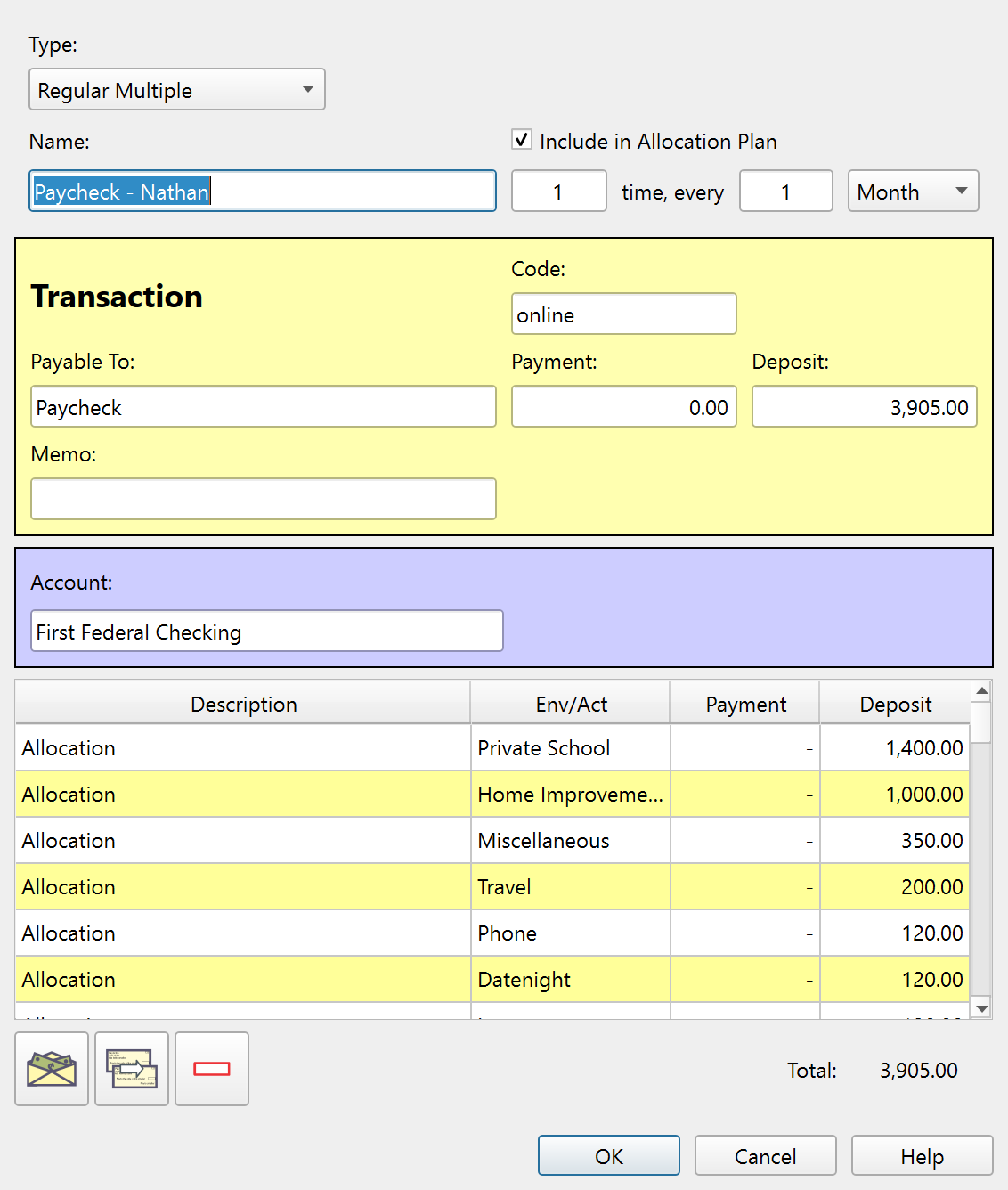
The Edit Transaction Template dialog creates and modifies Transaction Templates. Templates store reusable Transaction fields that you can apply when entering new Transactions. Open a Template for editing by double-clicking it in the Template list, or by right-clicking it and choosing Edit item.
Transaction type
A drop-down at the top of the dialog selects the Template type. The four types match the Transaction types available in the Edit a Transaction dialog:
| Type | Description |
|---|---|
| Simple | A single Account and Envelope assignment. |
| Transfer | A movement between Accounts, Envelopes, or both. |
| Regular multiple | A single Transaction split across multiple line items. |
| Multiple Envelope Transfer | A Transfer split across multiple Envelope assignments. |
The dialog layout changes to show the fields appropriate for the selected type.
Common fields
Every Template type shares these fields:
| Field | Description |
|---|---|
| Name: | The Template name. |
| Payable to: | The payee or description for the Template. |
| Payment | The payment amount. |
| Deposit | The deposit amount. |
| Memo | An optional note. |
Frequency
The frequency section controls how often the Template recurs:
- Count – The number of occurrences per period (for example, 2).
- Period – The interval between groups of occurrences (for example, 1).
- Span – The time unit: Day, Week, Month, or Year.
Together these read as "N time(s), every M [span]." For example, "1 time, every 2 Weeks" describes a biweekly Template. The span label switches between singular and plural automatically.
Allocation Plan
The Include in Allocation Plan checkbox adds this Template as a column in the Allocation Plan. When enabled, the Template appears in the plan grid and its amount is distributed across Envelopes according to the plan.
Only these Template types can be included in the Allocation Plan:
- Regular multiple
- Multiple Envelope Transfer
Allowed Template names
The Name: field is the Template name. It must be filled in and unique across all Templates. If it is blank, or if another Template already uses the same name, Principal Plan shows a warning and asks you to enter a different name.
Buttons
| Button | Description |
|---|---|
| OK | Saves the Template and closes the dialog. |
| Cancel | Closes the dialog without saving. |
| Help | Opens this help topic. |
Note: The entire help system is available as a single Markdown file suitable for teaching your favorite AI agent to be your personal Principal Plan expert. Download