Import Transactions
Bring Transactions in from a bank file.
Overview
Principal Plan imports Transactions from files downloaded from your bank or financial institution. Open the import dialog from File > Import Transactions and select a file. Three file formats are supported:
| Format | Extensions | Description |
|---|---|---|
| CSV | .csv | Comma-separated values. Supports US and international date formats. |
| QIF | .qif | Quicken Interchange Format. |
| OFX / QFX | .ofx, .qfx | Open Financial Exchange and Quicken Financial Exchange. |
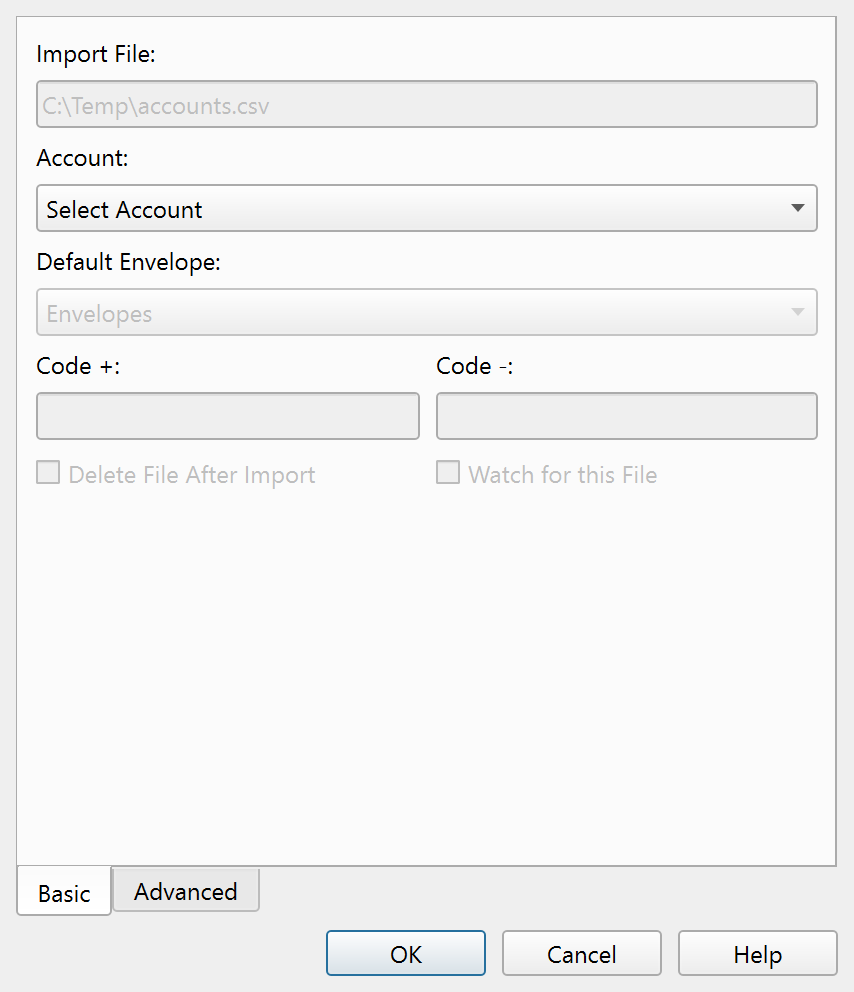
The import dialog
The import dialog has two tabs:
- Basic – Select the target Account, default Envelope, and file handling options. See Import Transactions — Basic for details.
- Advanced – Configure duplicate detection, field transformations, and AI Envelope matching. See Import Transactions — Advanced for details.
All settings are saved per Account and restored the next time you import into that Account.
Import workflow
- Select a file using the file picker (or let the file watch feature open the dialog automatically).
- Choose the target Account on the Basic tab.
- Adjust the default Envelope and any advanced settings as needed.
- Click OK to run the import.
During import, Principal Plan parses the file and compares each Transaction with existing records. When Smart import is enabled, matching Transactions are linked rather than duplicated, and unmatched cleared Transactions within the matching window can be uncleared. New Transactions are created with a pending status.
After import, the Account Ledger opens filtered to show the newly imported Transactions. Because imported files usually come from your bank, this is a good time to reconcile the Account balance. See Reconciling an Account for the reconciliation workflow.
Checkpoint
If Create checkpoint before import is enabled in Settings — Miscellaneous, a checkpoint of your data file is saved before the import begins. This gives you a restore point if the import produces unexpected results.
File watch
When both Delete file after import and Watch for this file are enabled, Principal Plan monitors the file path after import. If the file reappears (for example, from an automated bank download), the import dialog opens automatically for that Account. This supports recurring hands-free imports.
Buttons
| Button | Description |
|---|---|
| OK | Runs the import. |
| Cancel | Closes the dialog without importing. |
| Help | Opens this help topic. |
Note: The entire help system is available as a single Markdown file suitable for teaching your favorite AI agent to be your personal Principal Plan expert. Download